
Password Bank
The objective of
having a Password Bank is to process password protected documents from a list
of passwords stored in the AOD repository. The Password Bank also stores Lotus
Notes User Ids and passwords. Items may be added to the Password Bank
individually or imported using a .txt or .csv load file.
Add
Password to Password Bank
To add a password
to the Password Bank, follow the steps below:
1.
Click the drop-down arrow next to your name in the top right
corner.
2.
Click Admin Settings >
Case Admin >Password Bank.
3.
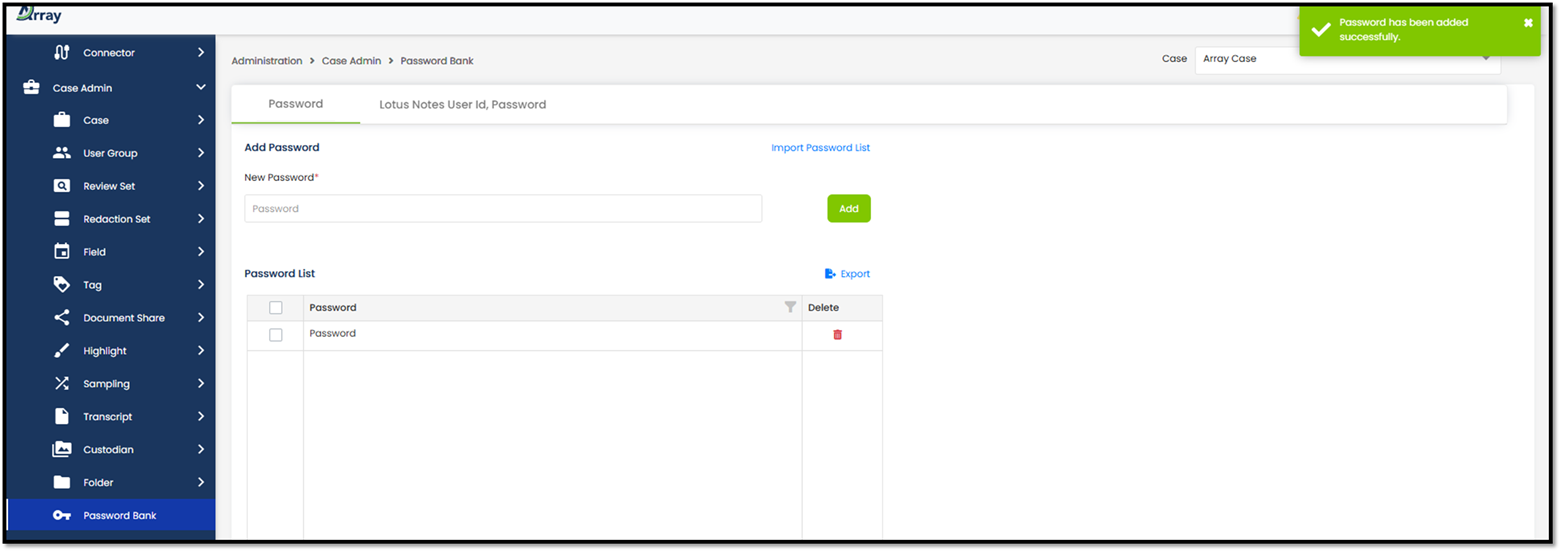
Enter the password in the New Password field.
4.
Click the Add button.
Added password
will be listed in the Password List.
Import
Password List
You may add
numerous passwords to the Password Bank at one time by using the Import option
and a load file containing passwords.
Files containing passwords must
be:
·
*.TXT or *.CSV format.
·
Less than 5 MB size.
·
Less than 50,000 lines.
To add passwords
to the Password Bank using a load file, follow the steps below:
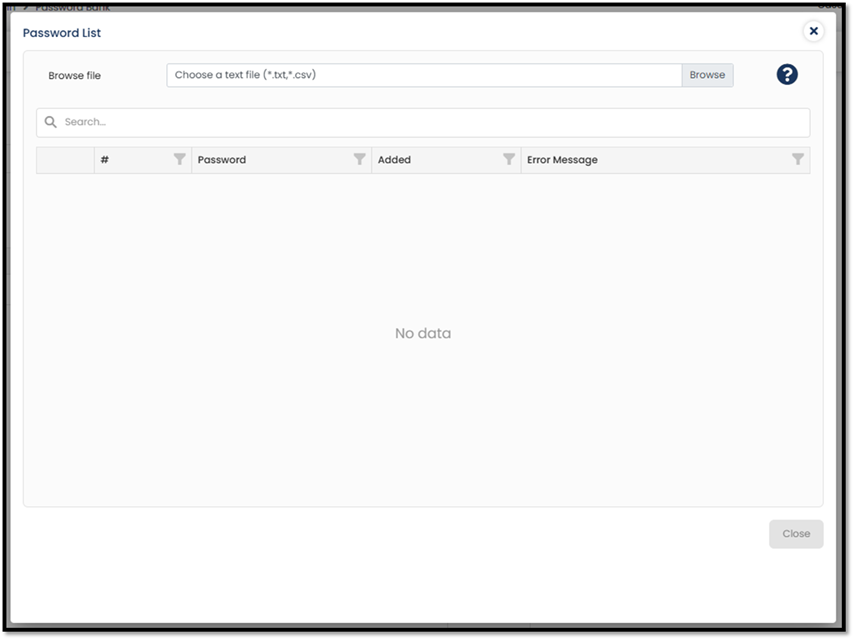
1. Click the Import Password List link.
The Password List dialog displays.
2. Click the Browse button. Select the
load file with the list of passwords and click the Open button.
Note:
The load file
must be in .txt or .csv extension format with each password on a separate
line/row.
3. The list of passwords from the load
file will be displayed after uploading the file.
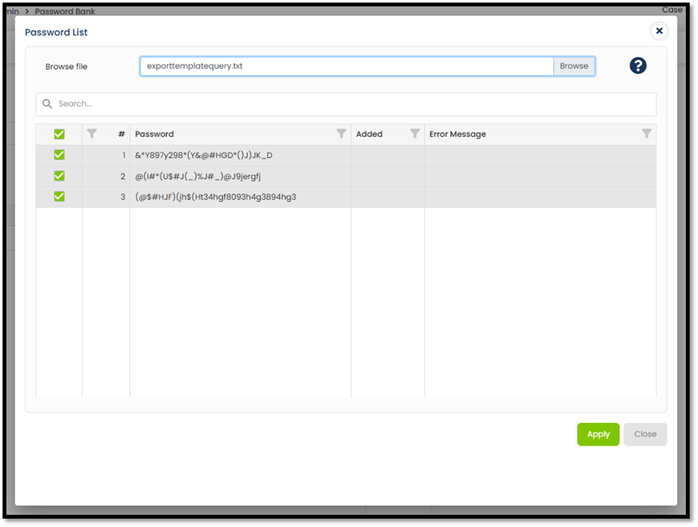
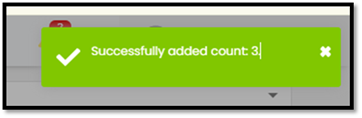
4. With the passwords selected, click the
Apply button. A confirmation message is displayed showing the number of
passwords added to the list.
5. Click on Close. The Password Bank is
updated with the new passwords from the load file, and they are displayed in
the Password List.
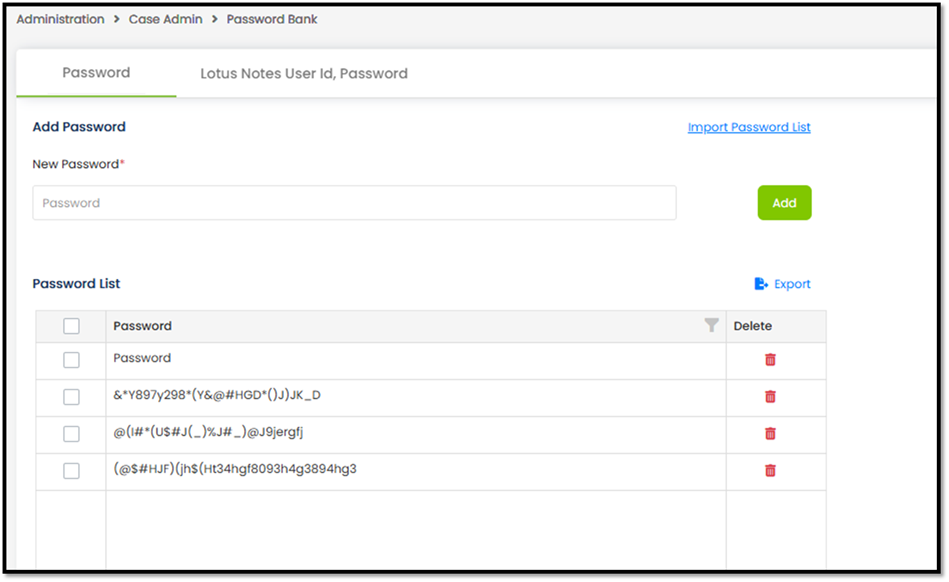
Delete
Password(s)
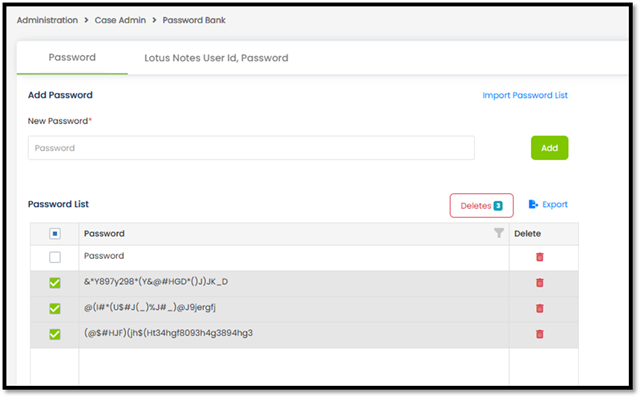
To delete a
password, navigate to the Password Bank. Check the row(s) next to a password in
the Password List and click the Delete button.
Export
Password List
You can also
export the list of passwords within the Password Bank using the Export button.
The files are exported in either.csv or Excel format.
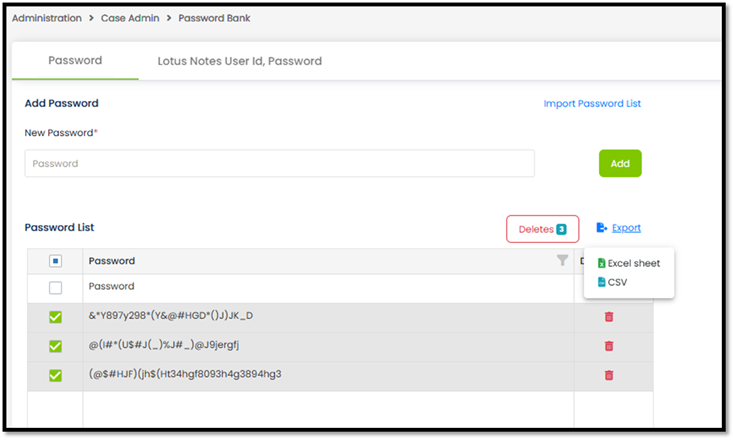
Simply click the
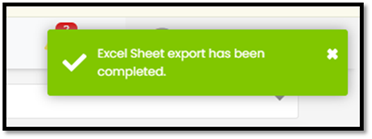
Export link and choose the format that you want to download. A confirmation
message will be displayed after a successful download.
Lotus
Note User Id, Password
The password to a
Lotus Notes NSF file can be provided in two ways, either via the .id file or
manually entered. The available options are:
·
NSF User File does not have an associated password.
·
NSF User ID file with associated password.
·
Click the Lotus Notes User Id, Password tab.
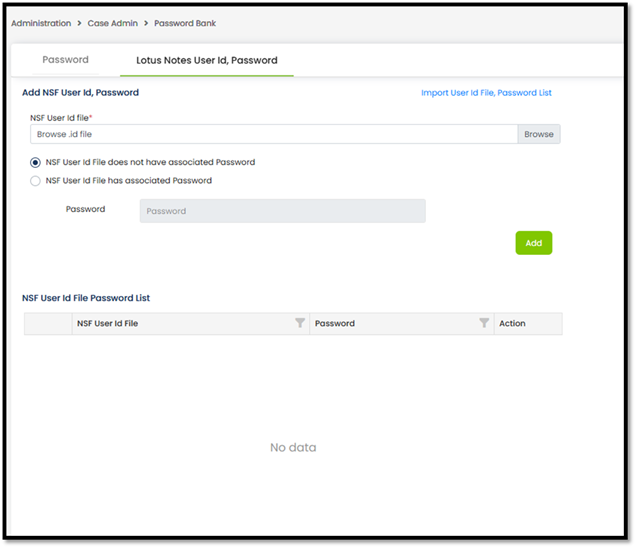
Ø Click the
Browse button.
Ø Navigate to
the NSF UserID File and click the Open button. Select the respective radio
button if the NSF User ID file has an associated password.
Ø Enter
password in the Password field if the id file doesn’t have an associated
password.
Ø Click the Add
button.
Ø The selected
file will be listed in the NSF User Id Files Password List.
Import
Password List
You may add
numerous Lotus Notes User Ids and passwords at one time by using the Import
option and a load file containing the User Ids and passwords.
·
Click the Lotus Notes User Id, Password tab.
·
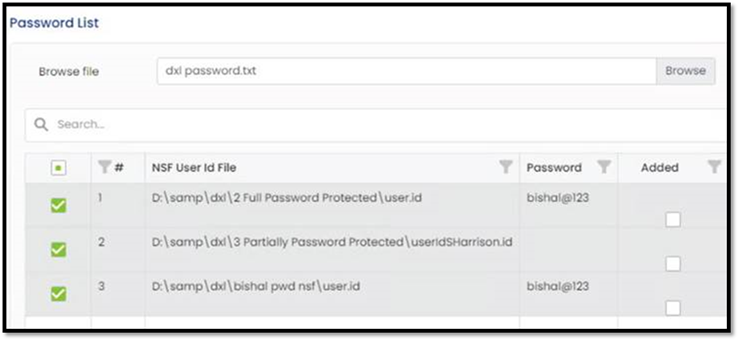
Click the Import User Id File, Password List link.
·
Click the Browse button.
·
Select the file containing the NSF User id and Password
information and click the Open button.
The Password Bank
is updated with the new User Ids and passwords from the load file, and they are
displayed in the Password List
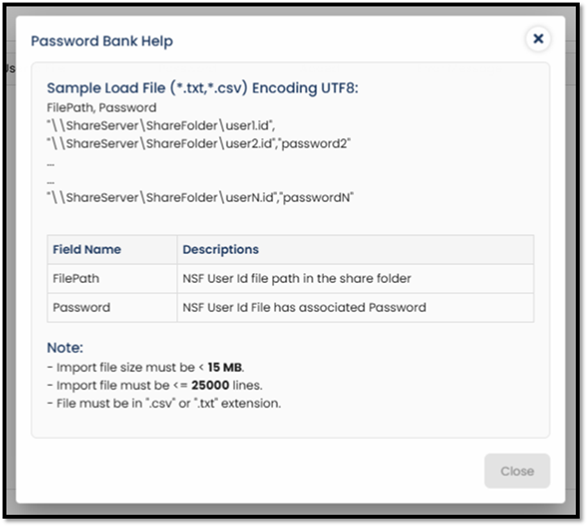
Note :
You may click the
Help (?) button for the format load file format information.
Delete
Password(s)
·
Click the Lotus Notes User Id, Password tab.
·
Click the Delete button beside the password to delete an
individual password OR place a check next to each password to be deleted and
then click the Delete button that displays at the top of the list.
Export
User ID file / Password
User Id files and
associated passwords contained in the Password Bank can be exported using the Export
button on the Lotus Notes User Id, Password tab in the Password Bank.
Simply navigate
to the Lotus Notes User Id, Password tab in the Password Bank and click the Export
link. The files are exported in either .csv or Excel format. You will be
notified after the export is completed.