Email Threading
An email thread is a single email conversation that starts
with an original email, (the beginning of the conversation), and includes all
the subsequent replies and forwards pertaining to that original email.
Case Setup:
Email Threading
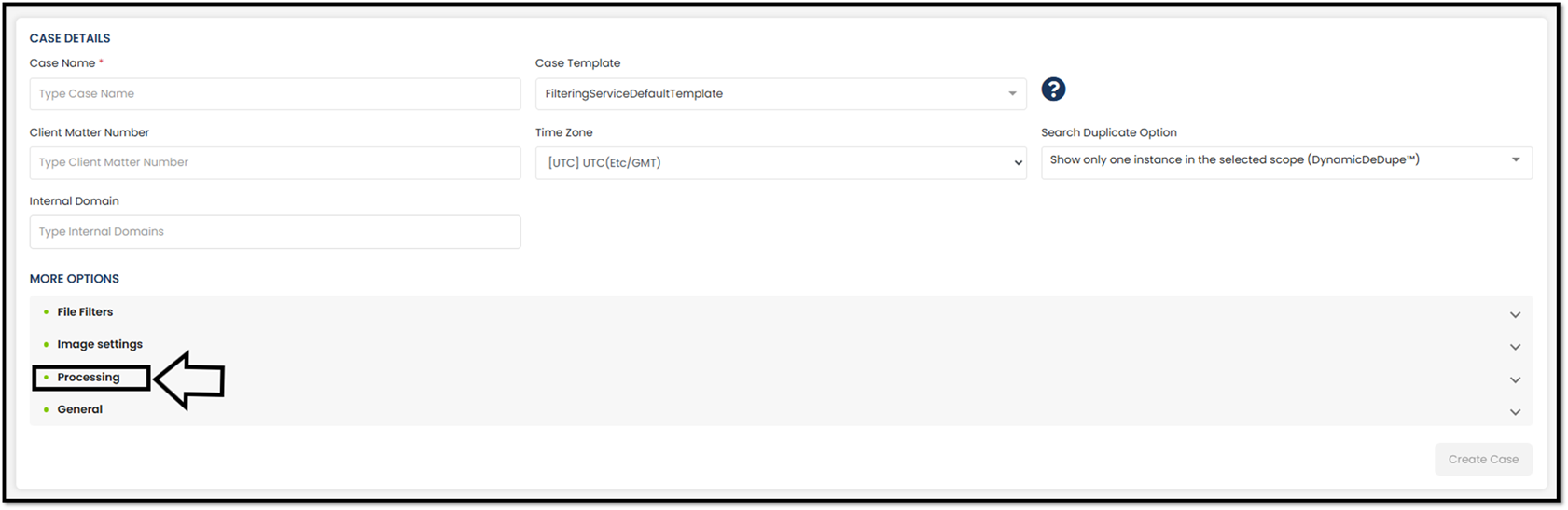
Setting – From the Case Details page. Check the below
1.
Select Processing tab
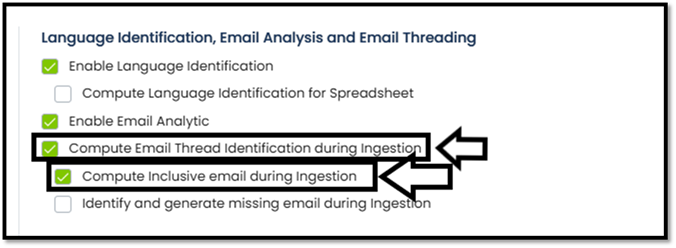
2.
Locate the “Language
Identification, Email Analysis and Email Threading” tab
3.
Select “Compute Inclusive
email during ingestion” if it’s not selected already.
Email Threading
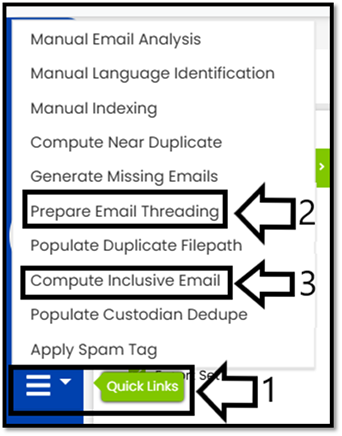
Setting – In the event the setting was not checked
during the case creation, Email Threading can be performed from the Quick Links
drop-down menu. This is found in the Analyze or Review portal. As this is case
specific, please make sure you are within the appropriate case. Initiate the
two items marked below.
Email Threading –
Review Portal
Email Threading Fields: There are two fields when dealing
with Email Threading in the Review Portal.
Ø Is Inclusive: This is a “YES” or “NO” value field. Yes, is an
Inclusive email. No, identifies the document as not the most inclusive.
Ø Inclusive
Email Internal FileID: The field will provide the FileID of the most inclusive email.
Email Thread Search:
(DOCUMENT_TYPE =
"EMAIL" AND (IS_INCLUSIVE = "TRUE"))
Email Thread Panel
The Email Thread
panel displays all documents within the Email Thread of the selected document,
if any exist.
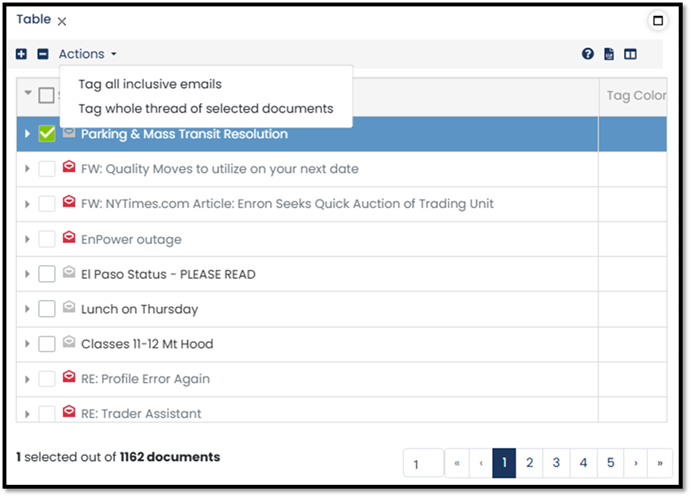
Use the Show/Hide
Columns button to adjust what is displayed within the panel.
Email Threading –
Review Portal
Switch
to Email Thread View - The field section can be switched to email thread mode.
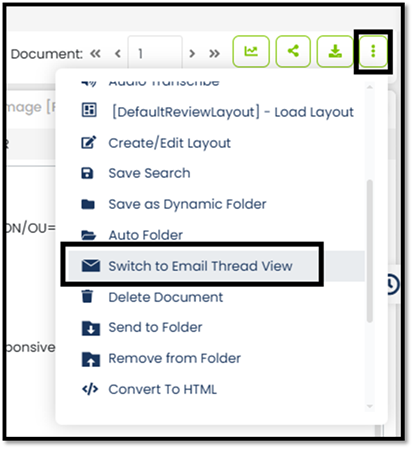
View after
updating to “Switch to Email Thread View”
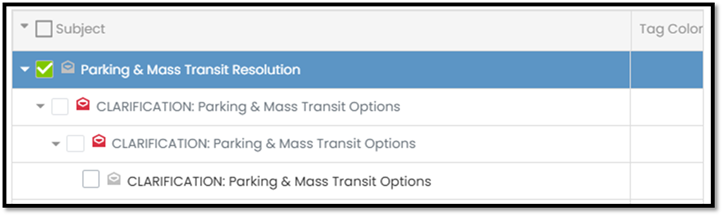
Email Thread View
You can view
email message threads only in Email Thread View. Different types of email files
are denoted by different color icons.
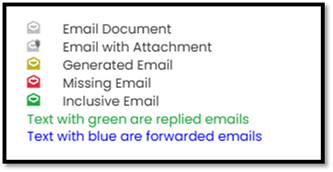
Ø Inclusive
Email - Green Message Icon
Ø Non-Inclusive
Email - Black Message Icon. For email with attachment will have an envelope
with a clip. As noted above.
Ø Generated Missing
Email - Blue Message Icon
Ø System Generated/Dummy
Email - Red Message Icon
Email Threading – Case Admin
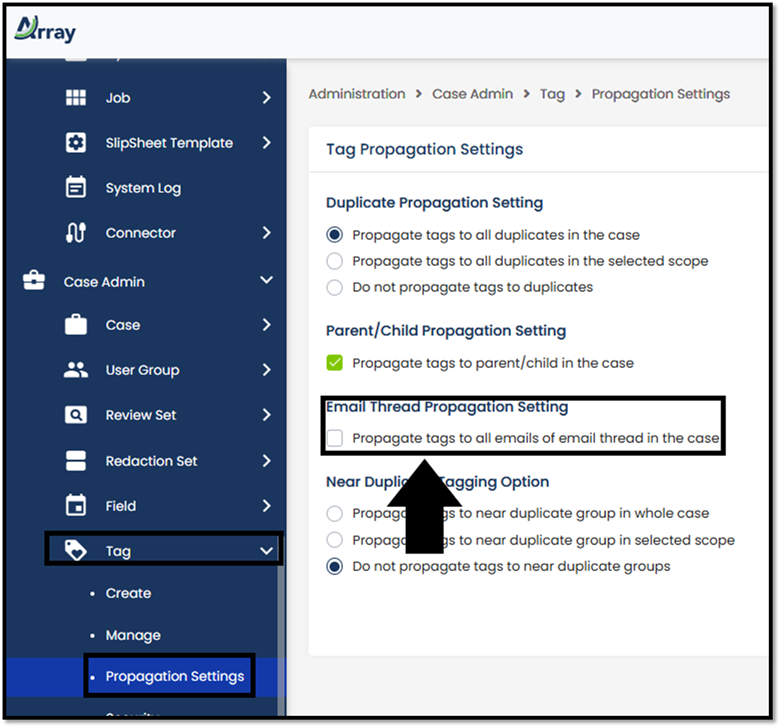
Email Thread Tagging
Options
Choose
whether to propagate tags within email threads. Checking Propagate tags to all
emails of email thread in the case will tag all emails within a thread.
Administration
> Case Admin > Tag > Propagation Settings
Email Threading –
Reports
The actions
related to Email Treading can be found in two reports. Reports can be found
within the Analyze or Review portal. As this is case specific, please make sure
you are within the appropriate case. Initiate the two items marked below.
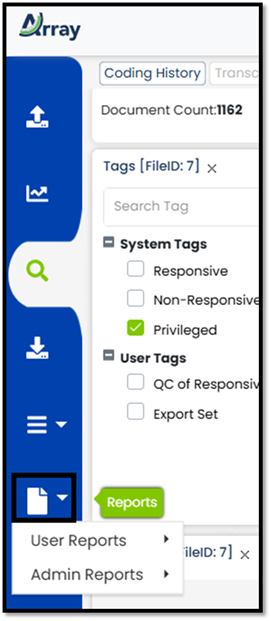
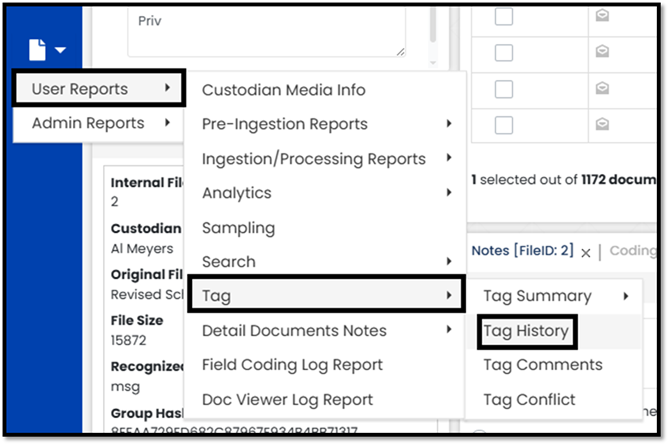
Tag History Report –
The Tag History report will provide the document counts based on Email
Threading, if the propagation was set.
User Reports > Tag > Tag History

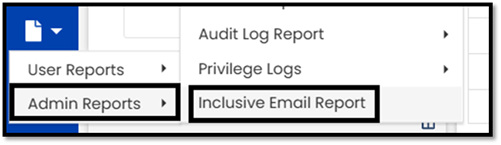
Inclusive Email Report – The report provides a reason for a documents inclusive reason.
Below are the three possible categories.
Admin Reports >
Inclusive Email Report
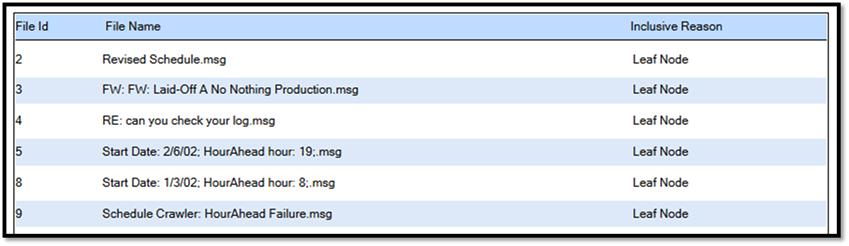
The
three possible inclusive reasons are, Leaf Node, Attachment Change and Text
Change.
Ø Leaf
Node is the latest email from the email
thread. (the last from the email thread tree)
o Email 1 > forwarded Email 2 > forwarded Email 3>
forwarded Email 4
Email 1 > forwarded Email 2 > Forwarded Email 5
o Here Forwarded Email 4 and Forwarded Email 5 are leaf
nodes
Ø Attachment Change (Reason for being inclusive)
o In the above email tree if there is change in attachment or
attachment is added then that email is considered as inclusive email
Ø Text Change (Reason for being inclusive)
o In the above email tree if there is change in the forwarded
text then those are considered as text change reason for inclusive email
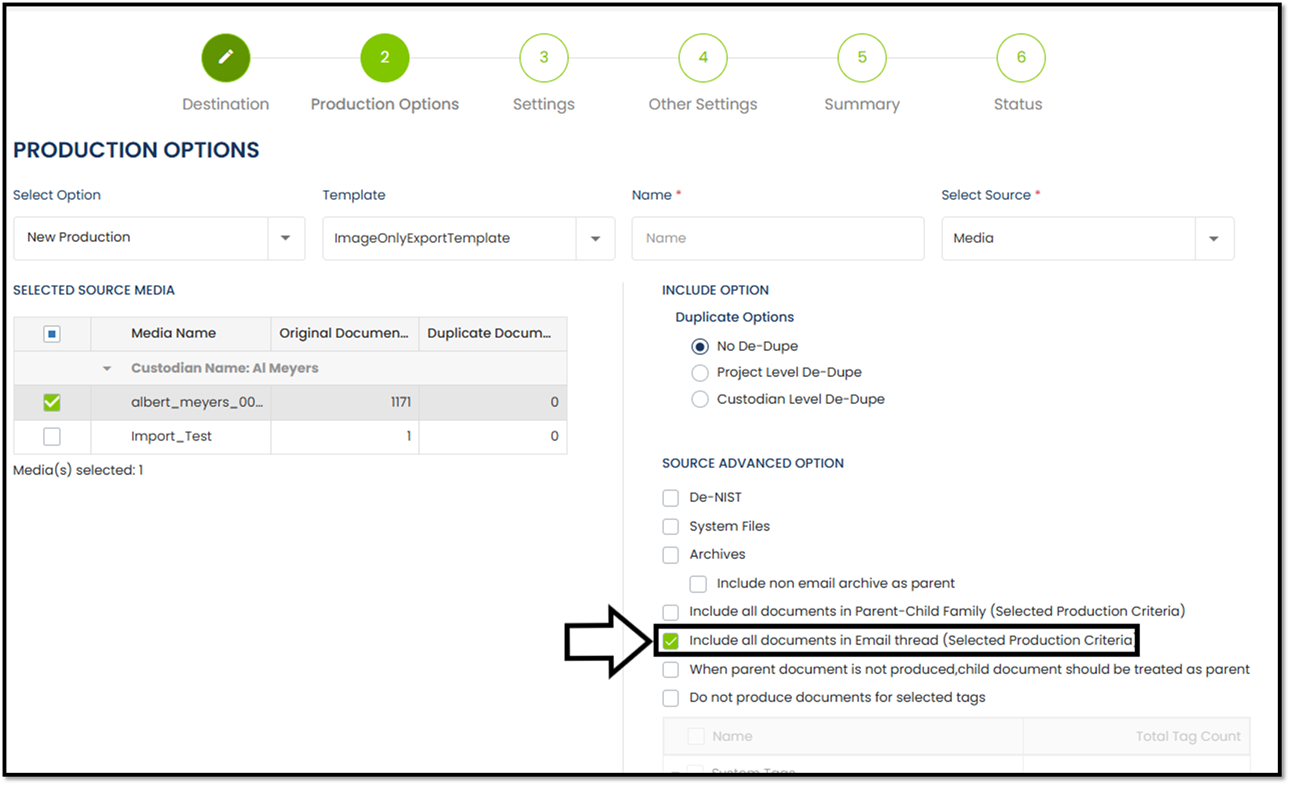
Email Threading - Export Option
Include all
documents in Email Thread (Selected Production Criteria): Whole email thread
will be produced. This is also the default selection of production.