Review Set Admin Creating Review Batches
Within Case Admin, you may create and manage
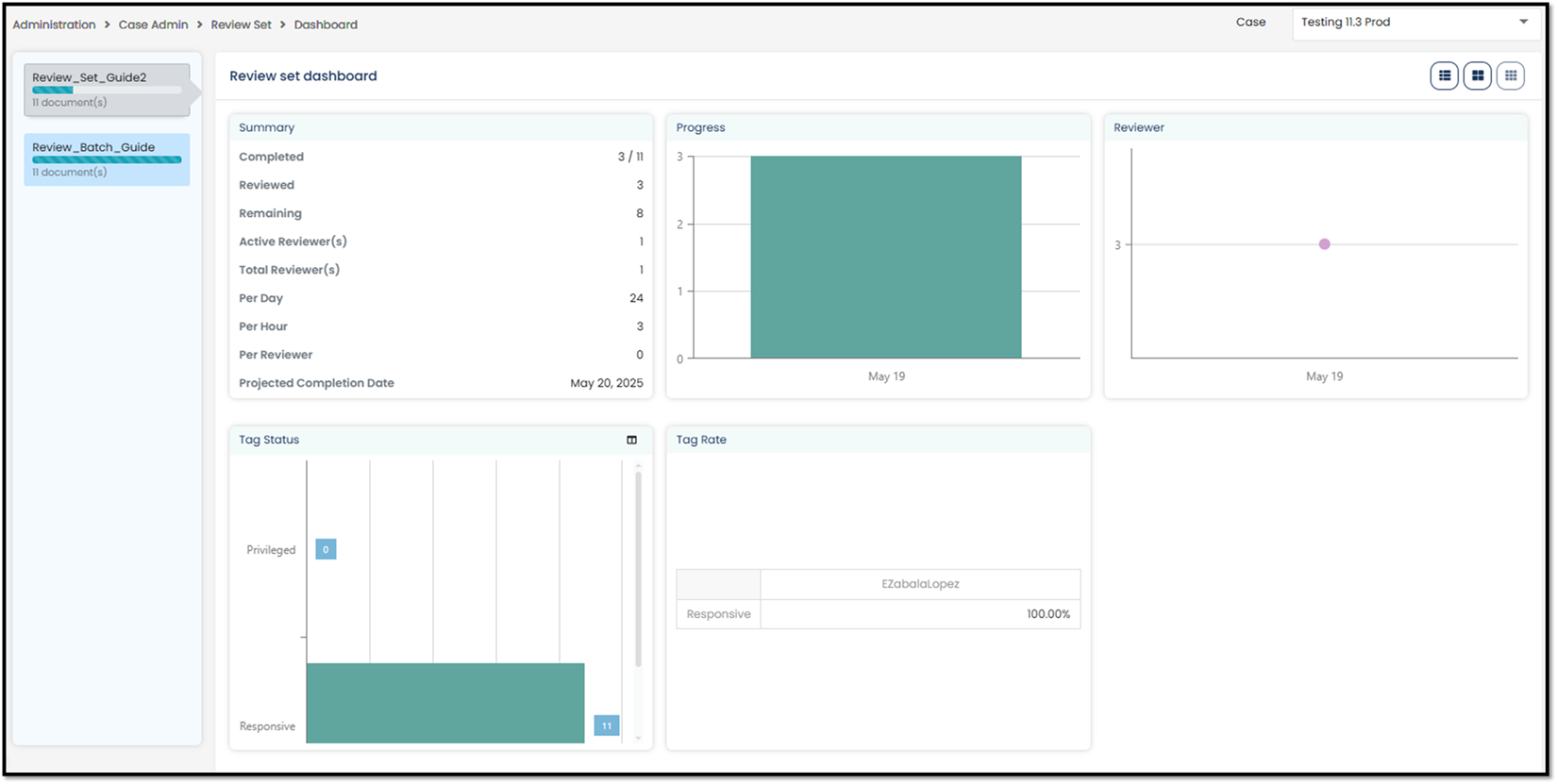
Review Sets, as well as view the Review Set Dashboard, which gives detailed
information about a review’s progress.
Create Review Set
Admin Settings > Case Admin >
Review Set > Create.
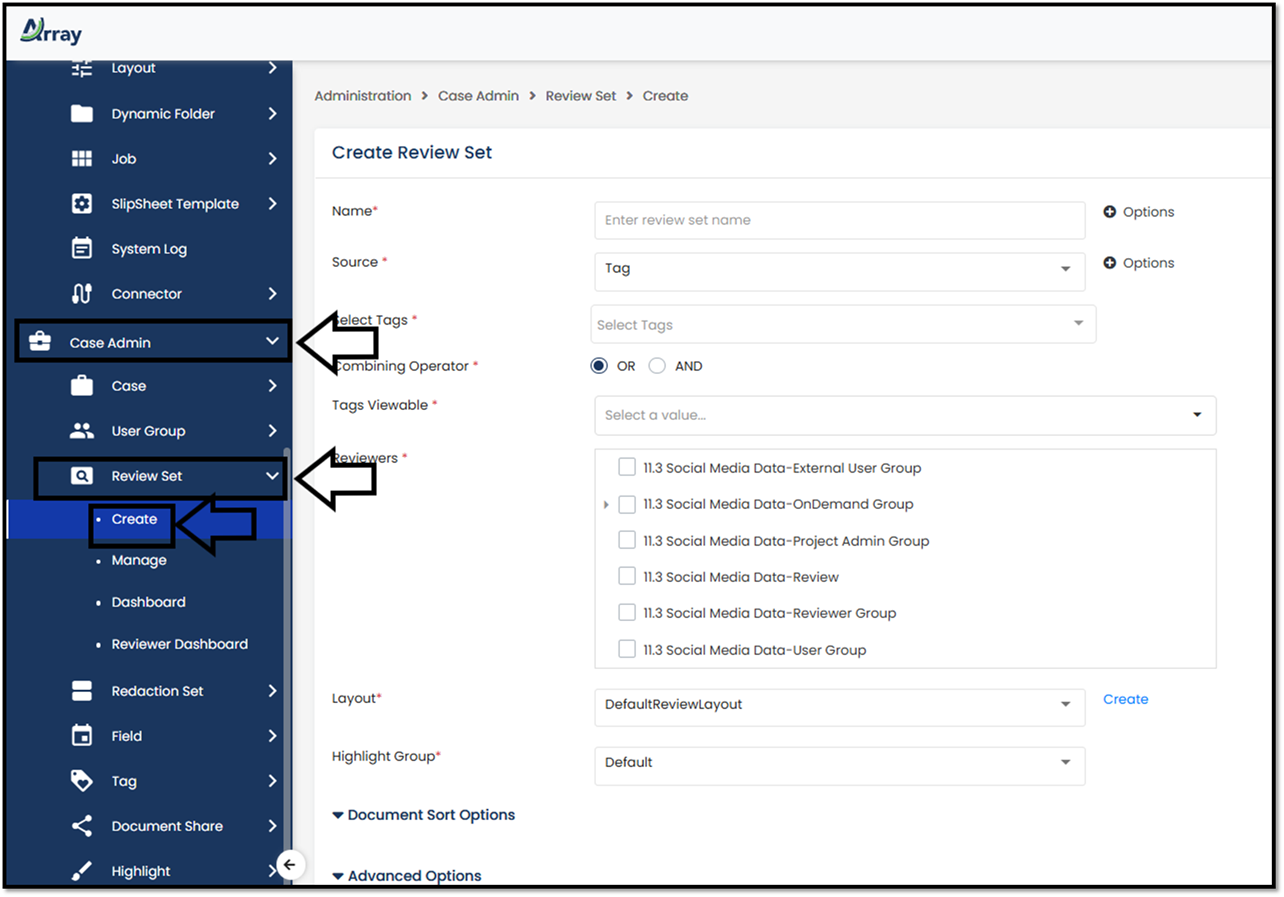
Case: This is a dropdown, which will list
the available cases.
Name: Provide a name for this Batch set
1. Document Sort
Options: Click on the title and this will make additional settings available.
2. Prefix: Batch prefix name.
3. Starting Number: Batch starting number.
4. Padding: Batch padding
5. Batch Size: Numeric value to establish the
document count per batch.
6. Instruction: Free form box to provide
instructions to the review team.
Source: This is a dynamic drop-down field.
The selection here will update the next set of settings. In our example above
we will use Tags. Our other options are Saved Search or Folder.
Select Tag: Since the above is dynamic, our
options here will not be tag based. Meaning, we can create batches based on a
tag collection.
Options:
1. Enable Auto Collection: This check box turns
on the auto enable features. The settings below will activate.
2. Frequency: Provide the value, in hours, for
the check in.
3. Date Expiration: Provide an expiration date
for the auto collection.
4. Minimum Threshold: Value for the minimum
number of documents before the new batches can be created.
Tags
Viewable: Dynamic setting
based on the above selection. Control the fields that will be viewable to the
review team.
Reviewers: Reviewer rights are based on groups
primarily. A specific reviewer can be selected by clicking on the group name.
This will expand the group and list out each group member.
Layout: Select the default layout the review
team will use during their review.
Highlight
Group: This is set to
Default.
Document
Sort Options:
Feature to set a document sort per batch.
Advanced
Options:
1. Include Options:
o
Additional
settings on the inclusion of additional documents.
2. Exclude Options:
o
Options to exclude
documents that are already part of other review sets, and options to remove
non-inclusive emails.
3. Tag Propagation Options:
o
Settings to
propagate batched review documents.
4. Review set Propagation Options:
o
Options to
change the behavior of tagging for the review set.
5. Continuous Active Learning (CAL) Options:
o
Option to
enable CAL
6. HTML Auto Job
Options
o
Options to convert documents to HTML for quicker visibility of the
native viewers when rendering natives.
7. Image Auto
Job Options
o
Option to convert all natives to images
8. Review set
Options
o
Option to check in batch once all documents have been tagged and
reviewed.
Batch Review Manage
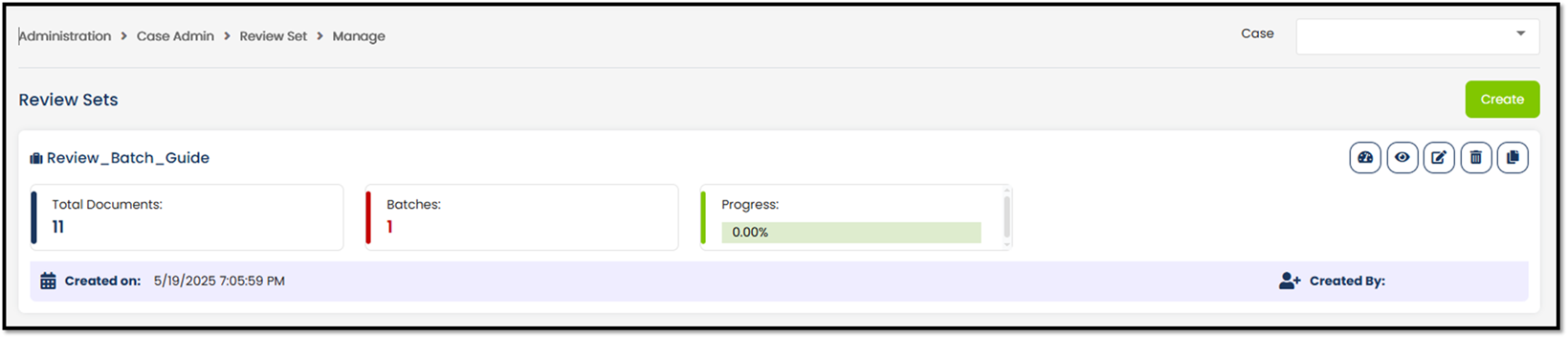
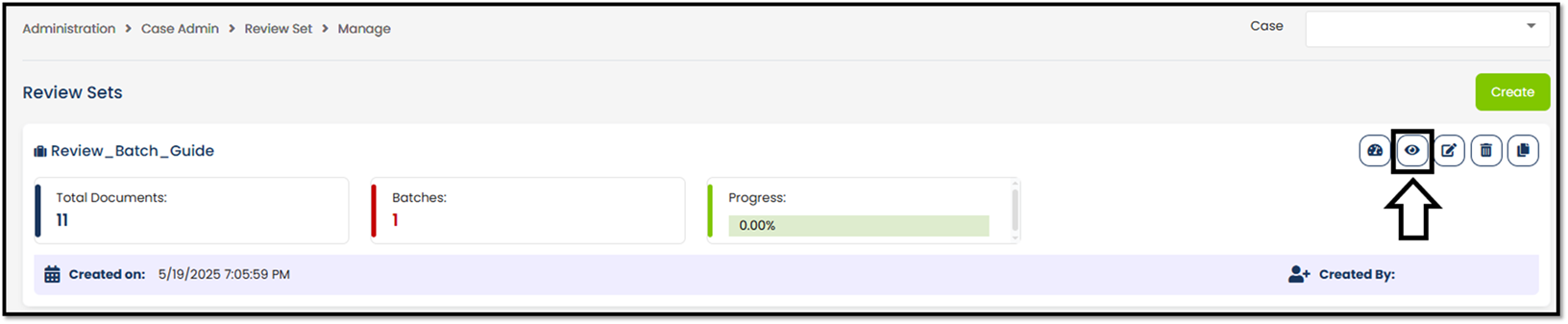
In the Manage section,
you can get an overall update on the progress. This window will list the total
document count, total batch count and progress bar. Below are additional
features that are available.
1. Dashboard: The dashboard is available for a detailed
status on the Batch Review. Dashboard Icon
2. View: See the status of every batch. View Icon 
3. Edit: Provide a way to edit certain settings in
the batches. For example, the Name or the Layout. 
4. Delete: Feature to delete the Batch Review group. 
5. Clone: Creates a clone of the batch review. The batch
review can be cloned and update the settings before saving. Clone Icon
Reviewer Dashboard
The
Reviewer Dashboard shows the progress and status of all the reviewers in a case
or across multiple cases.
Use
the Review Sets and Reviewers drop-down lists to view data for specific Review
Sets and Reviewers, respectively. After these items are selected, the review
set batches with the corresponding status are displayed in the dashboard.
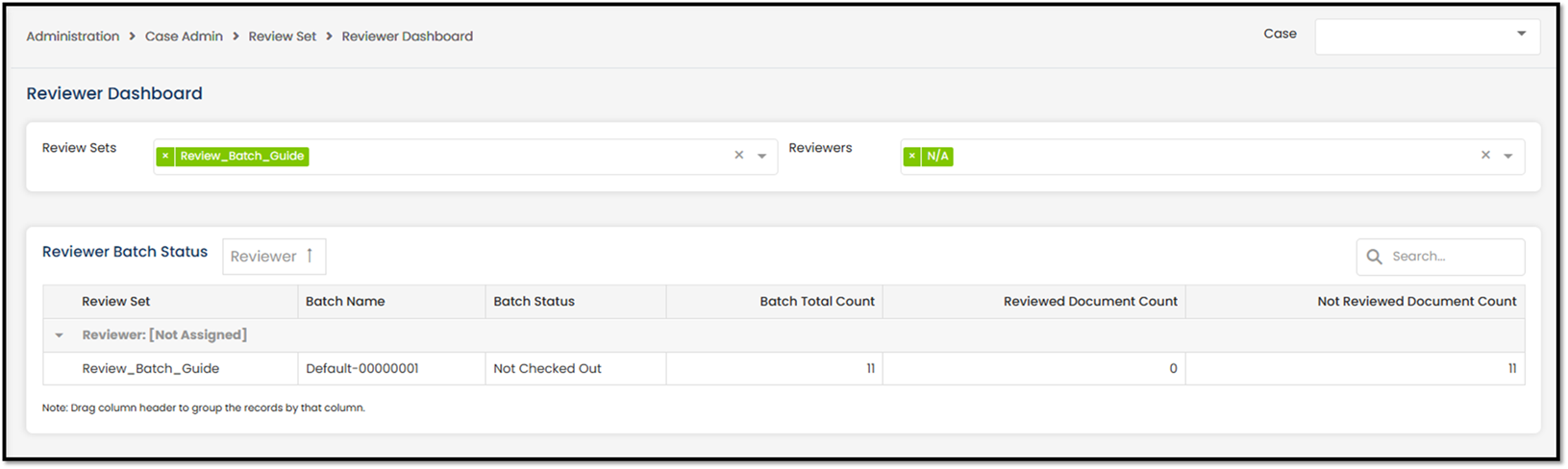
Drag a column
heading to the top of the Reviewer Batch Status section to group items by that
heading. Review set batches can also be searched and filtered as required.
Depending on the criteria selected to populate the Reviewer Dashboard, the
Reviewer Performance chart will display metrics on the performance for each
reviewer. The metrics can be displayed by: Day, Week, Month, or Year.
The Reviewer
Accuracy chart shows metrics on the accuracy of each reviewer compared to other
reviewers.
Reassign or Re-batch.
Please review the
workflow if a batch has been checked out but a new reviewer needs to be
assigned to continue with the remaining documents. Alternatively, if instead of
assigning the batch but would prefer to create a new batch, please see both
features below.
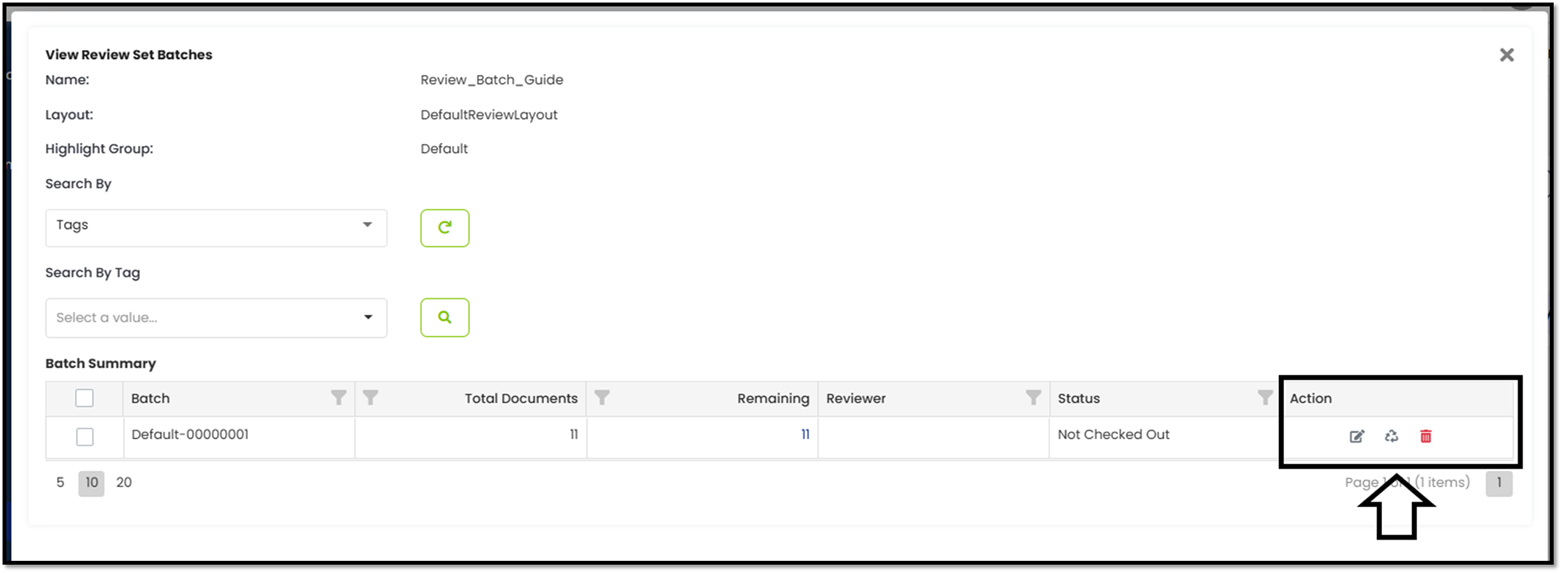
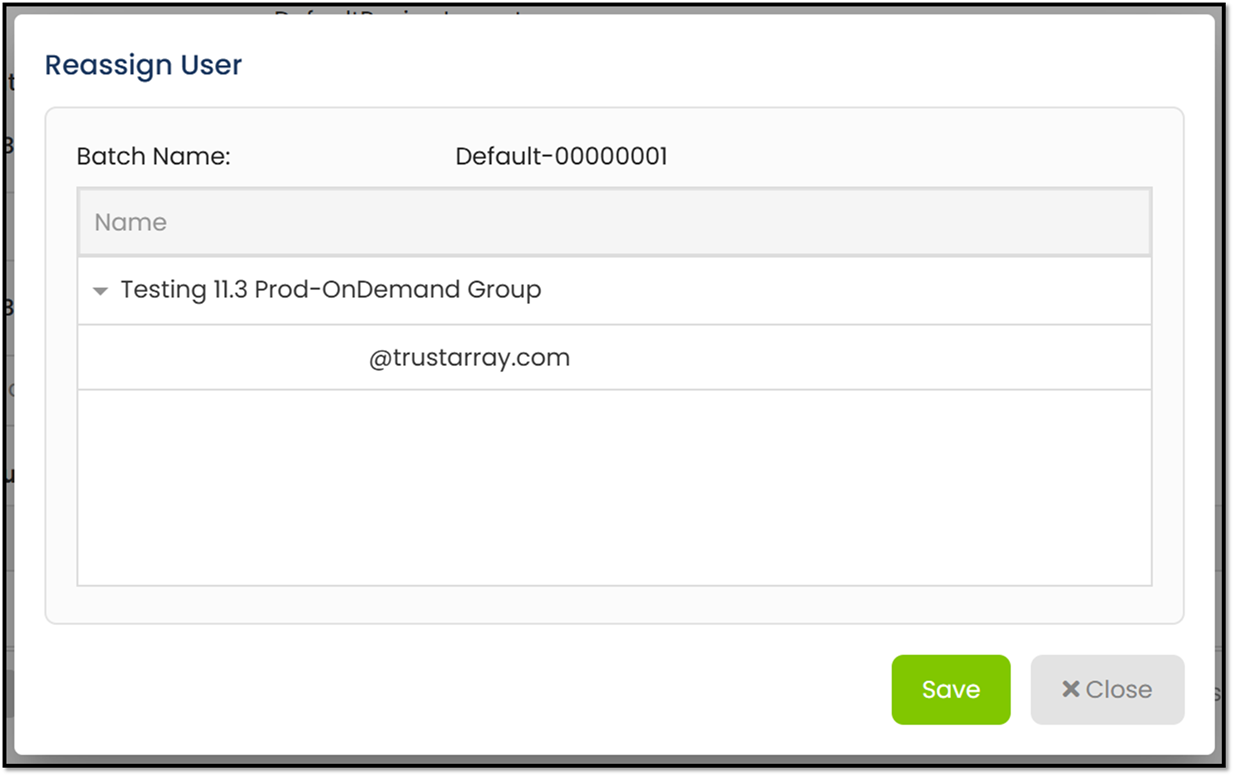
 Reassign
Icon: After clicking,
the pop-up will provide the Batch Name and user list. Select the name and click
save. The batch will not be assigned to the updated user.
Reassign
Icon: After clicking,
the pop-up will provide the Batch Name and user list. Select the name and click
save. The batch will not be assigned to the updated user.
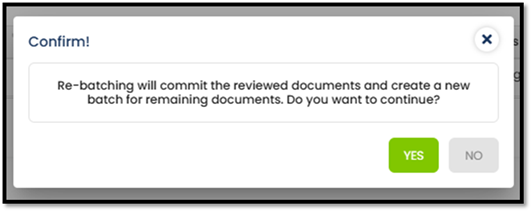
 Purge and Re-batch: Clicking on this icon will produce
the pop-up below. It will maintain the “marked” documents in the current batch
and create a new batch, naming the new batch after the next available batch
name.
Purge and Re-batch: Clicking on this icon will produce
the pop-up below. It will maintain the “marked” documents in the current batch
and create a new batch, naming the new batch after the next available batch
name.
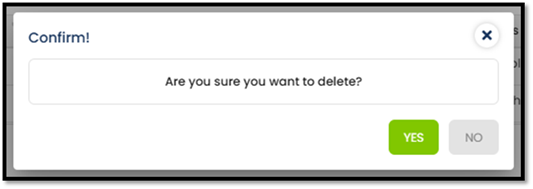
 Delete: Clicking on this icon will generate a
confirmation popup before committing the deletion.
Delete: Clicking on this icon will generate a
confirmation popup before committing the deletion.