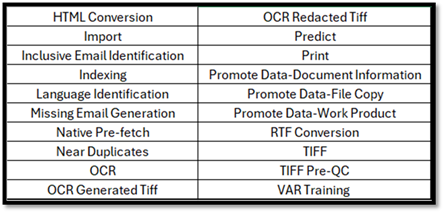
Advance Search
Click the button to open the Advance
Search dialog. Expandable sections indicate the different types of searches
available, which are described in the sections below. The search composed using
one or more of the different search types will be displayed at the top of the
Advanced Query Builder.

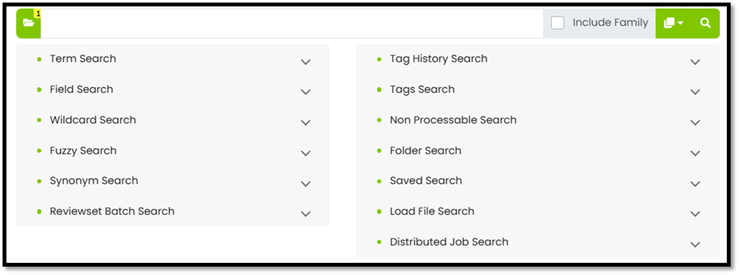
Term Search
The Term Search section enables you to
search in document contents, metadata, or both document contents and metadata
by providing keyword(s) and/or phrase(s).
Enter the terms in the desired
field(s), select the context option, and then click the ADD(OR) button
to create an OR search.
To create an AND or NOT
search, click the drop-down arrow on the ADD(OR) button and select the
desired option.
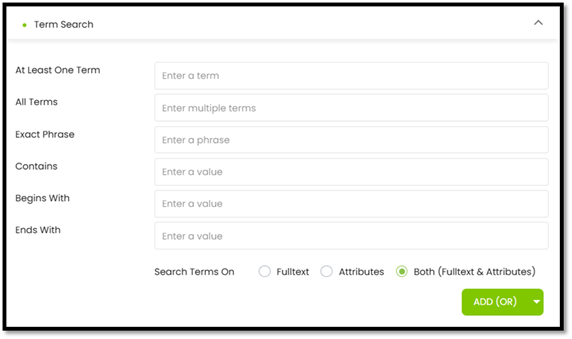
Term Search
Options:
To search only the document contents,
select the FULLTEXT radio button. Search terms can be multiple terms
combined using Boolean operators.
- Example: FULLTEXT (term1 OR term2)

To search only document metadata,
select the ATTRIBUTES radio button. Search terms can be multiple terms
combined using Boolean operators.
- Example: ATTRIBUTES (term1 OR term2)

To search in both document contents
and metadata, select the Both (Fulltext and Attributes) radio button.
Search terms can be multiple terms combined using boolean operators.
- Example: term1 OR term2

NOTE: If neither FULLTEXT nor ATTRIBUTES is
specified, by default the term is searched in both attributes and
fulltext.
Field Search
Field Search is the most used filter
from the Advanced Search group.
To compose a Field Search, you must
click on the “click me” link.

At that point, the Select Field
drop-down will display. As you scroll down the drop-down lists to select a
field and then your operator and content, the query being built is displayed on
the Search Bar at the top of the dialog.
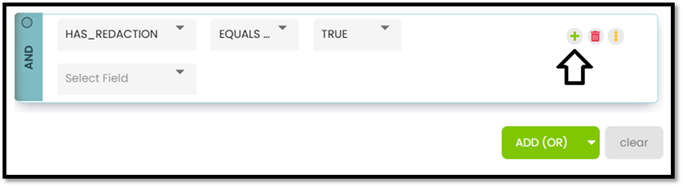
In the example below, the
HAS_REDACTION field has been added to search for redacted documents.
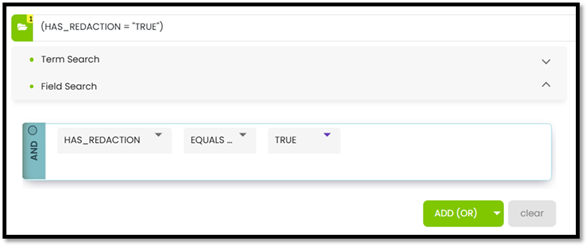
Multiple fields can be added to a
search using the plus icon which will appear by hovering over the space, as
shown below.
Wildcard Search
The Wildcard Search enables you
to use wild characters. You will be able to see the wildcard expansion results
and pick and choose which of those expanded terms you want to use in the
search. This helps you narrow the search to smaller hits and avoid false
positives. You will also be able to see what variations of a term are in the
data.
Wildcard term expansion can be
performed using the FULLTEXT, ATTRIBUTES or BOTH. After the term expansion, you
can select multiple expanded terms and form the query for searching. You may
also use the Show Term Count option to display the number of document hits for
a specific term. Wildcard searches can also be combined with other searches
using the ADD(OR) button.
Wildcard Search
Example:
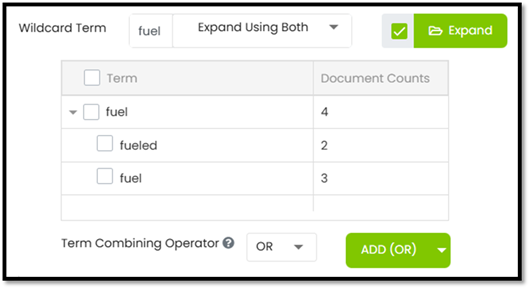
In the example below, we’ve typed “Fuel”
wihout quotes. The checkbox next to Expand adds the Document Counts to
the results list. Click on “Expand” to initiate the search.
The results can be reviewed and
sub-searches created based on checked terms. Click on the ADD (OR) icon to add
the checked items to the search bar.
Wildcard
Characters
Wildcard character searches are only
supported in the following search types: Search By Term, Wildcard Search, Fuzzy
Search, Proximity Search and Field Search. Wildcard characters supported by Array
OnDemand are
* (asterisk) and ?
(question mark) and their use is described below.
The * (asterisk) wildcard will
match zero or more characters, except for spaces. For example, to search for fuel,
fueling or fueled, you can use the search: fuel*
You can also use wildcard characters
in the middle of a term. For example, to search for text, tent,
or tenant, you can use the search: te*t
The ? (question mark) wildcard
will match a single character, except for spaces. For example, to search for
"text" or "test" you can use the
search: te?t
Fuzzy Search
The Fuzzy Search enables you to
find terms similar to the one term you provide. This helps you to find
misspelled words, such as people’s names, or when you are unsure of the exact
spelling of a term.
Fuzzy search can search in either
FULLTEXT, ATTRIBUTES or BOTH. After the expansion (finding variations) of the
terms, you can select multiple expanded terms and form the query for searching.
Fuzzy searches can also be combined with other search types using the ADD(OR)
button.
Fuzzy Search
Example:
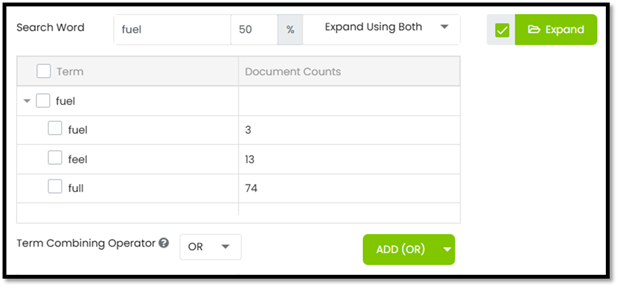
A search for “fuel” could return fuel,
feel and full in our example below.
- Select Fuzzy Search tab in Advance Query
Builder.
- Enter the fuzzy search term to expand in
the Search Word field.
- Optional: Adjust the Fuzzy Factor which defines
the strictness of expansion. The default fuzzy factor is 50%. Increasing
the fuzzy factor will search for less similar terms, while decreasing the
fuzzy factor will search for more similar terms.
- Use the Expand Using… drop-down to expand
the search term using Both, Fulltext or Attributes.
- Optional: Use the Hide Term Count checkbox to
show the document counts for each expanded term.
- Click the Expand button to display the
terms.
- Check the boxes next to the term(s) to
search from the list.
- When you select multiple expanded terms,
the default Term Combining Operator is OR. You can change this to AND or
NOT, as desired, using the drop-down list.
- Click the ADD (OR) button to add the
terms to the Query Field.
- Click the Search button to execute the
search.
Synonym Search
The Synonym Search enables you
to list all the terms that are synonyms of the term you provide. Synonyms can
be searched in either FULLTEXT, ATTRIBUTES or BOTH. After the expansion
(finding synonyms) of the
terms, you can select multiple
synonyms found and form the query for searching.
Multiple terms can be expanded at the
same time. For expanding multiple terms, separate each term with a space.
If any synonym for a term exists, but
that term does not exist in the system, those synonyms will not be listed in
the expansion window as shown below.
Synonym Search
Example:
House is a synonym for “home”. However, if
the term home does not exist in the scope of data being searched, then the
synonym house will not be listed in the synonym expansion box.
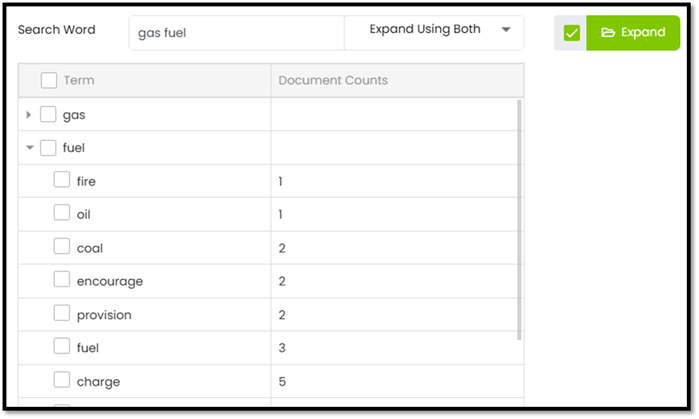
In the example below, we’ve typed “gas”
and “fuel” without quotes or delimiters. The checkbox next to Expand
adds the Document Counts to the results list. Click on “Expand” to initiate the
search.
The results can be reviewed and
sub-searches created based on checked terms. Click on the ADD (OR) icon to add
the checked items to the search bar.
Review set Batch
Search
The Review set Batch Search enables
you to search for the documents in a review set batch. Multiple review sets,
batch statuses, and reviewers can be combined using a Boolean operator (AND,
OR, NOT) to form complex queries. The Reviewset Batch Search query can also be
combined with other queries.
- Select the Review set Batch Search tab in
the Advance Query Builder.
- Check one or more Review Sets you wish to
search for in the Review set drop-down list.
- Optional: Select a status from the Batch
Status drop-down list.
- Optional: Select a reviewer from the
Reviewer(s) drop-down list.
- Click the Apply button.
- Check one or more items to search for in
the Review set Batches list.
NOTE: When you select multiple Review sets or
Batches, the default Term Combining Operator is OR. You can change this to AND
or NOT using the Term Combining Operator drop-down (bottom left), as
desired.
- Add the Review set Batch(es) to the
Search Query textbox by clicking the Add (OR) button.
NOTE: Use the drop-down arrow on the button to
select the appropriate Boolean operator if you wish to combine the Review set
batch(es) with an existing query in the Search Query textbox. If the Search
Query textbox is empty, then selecting any Boolean operator has the same effect,
as there is nothing to combine with.
- Click the Search button. The files with
the selected Review set batches(s)are displayed in the Document
Table.
Tag History Search
Tag History Search enables you to
search for documents tagged/untagged with the selected tags. Multiple tags can
be combined using a Boolean operator (AND, OR, NOT) to form complex queries.
The Tag query can also be combined with other queries
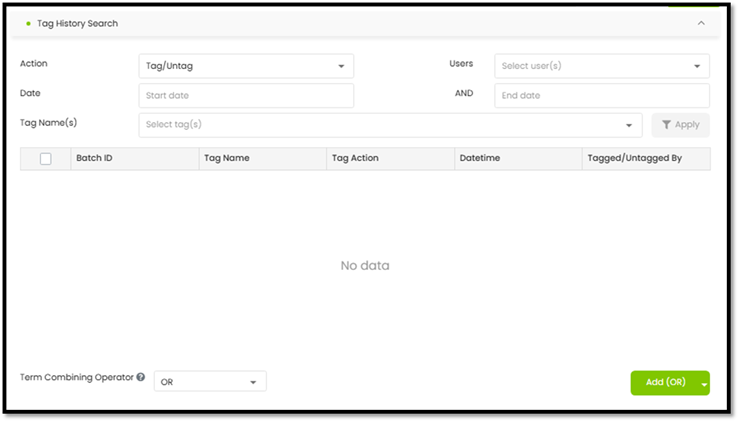
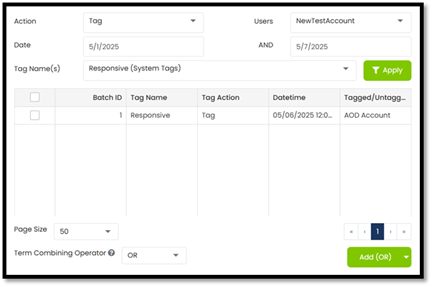
Check one or more tags to search for
in the Tag Name(s) list.
NOTE:
When you select multiple tags, the default Tag Combining Operator is OR.
You can change this to AND or NOT using the Tag Combining
Operator drop-down (bottom left), as desired.
Add the tag (s) to the Search Query
textbox by clicking the Add (OR) button.
NOTE:
Use the drop-down arrow on the button to select the appropriate Boolean
operator if you wish to combine the tags with an existing query in the Search
Query textbox. If the Search Query textbox is empty, then selecting any Boolean
operator has the same effect as there is nothing to combine with.
4.
Click the Search button.
The files with the selected tags are displayed
in the Document Table.
- Action: Drop-Down to select Tag or Un-tag
- Users: Drop-Down to User. Select the top checkbox to select All
Users.
- Date (Start): Optional field to apply a starting date
filter
- Date (End): Optional field to apply a ending date
filter
- Tag Names (s): Drop-Down to select tag(s)
Apply: Click on Apply once all the
above filters have been set.
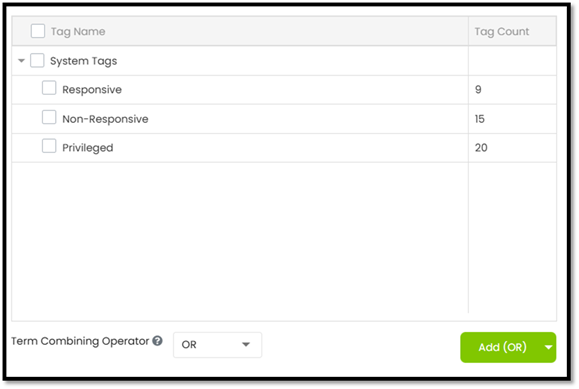
Tag Search
The Tag Search option allows you to search
existing tags that were created in the case. Multiple tags can be combined
using a Boolean operator (AND, OR, NOT) to form complex queries. The Tag query
can also be combined with other queries.
The “Tag Name” and the “Tag
Count” are shown below.
Non Processable
Search
It is recommended that after the ingestion
is complete, that a search of the Exceptions Files along with Archives be run.
This will help bring forward archives/documents with potential
issues.
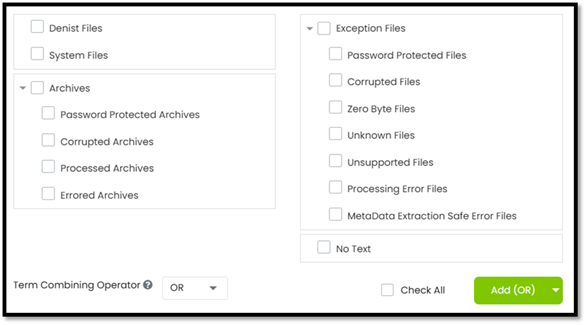
De-NIST Files: This searches for original de-nisted files.
System Files: This searches for original system
files.
Archives: This searches for original archive
documents.
- Password Protected Archives: This searches for archives that are
password protected.
- Corrupted Archives: This searches for archives that are
corrupted.
- Processed Archives: This searches for archives that are
processed.
- Errored Archives: This searches archives that are errors.
Exception Files: This searches for Exception files.
- Password Protected Files: This searches for original password
protected documents.
- Corrupted Files: This searches for original documents
that are corrupted.
- Zero Byte Files: This searches for 0-byte files.
- Unknown Files: This searches for original documents
that were not recognized by the system
- Unsupported Files: Any files that are not supported
by Array OnDemand will be listed here.
- Processing Error Files: This searches for original documents
that were identified by the system but that could not be processed by the
system.
- Metadata Extraction Safe Error Files:
No-Text: This searches for all the original documents
whose FullText file does not exist. This includes images, archive, system and
De-NIST files as well.
Like any other field search,
non-processable field searches can be combined with Boolean
operators.
Example 1: (IsArchive = "True") AND
(IsPasswordProtected = "True") This will search for all the documents
that are password protected and are archived.
Example 2: (IsDenist = "True" OR IsSystem =
"True") This will hit all documents that are either system or are
De-NIST files.
NOTE: Tags cannot be applied in System
and/or De-NIST documents. We cannot apply tags to archive documents
either.
Folder Search
The Folder Search section enables you
to search for the documents added into a folder. Multiple folders can be
combined using Boolean operator (AND, OR, NOT) to form complex queries. The
folder query can also be combined with other queries.
Select Folder Search tab in the Search
Options.
Check one or more folders you wish to
search for in the Folder Name List.
When you select multiple tags, the
default Folder Combining Operator is OR. You can change this to AND or NOT, as
desired.
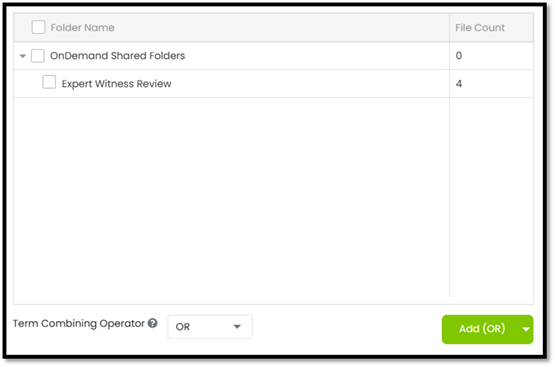
Add the folder (or Folders) to the
Search Query textbox by clicking the ADD(OR) button. Use the appropriate
Boolean operator if you wish to combine the tags with an existing query in the
Search Query textbox. If the Search Query text box is empty, then selecting any
Boolean operator has the same effect as there is nothing to combine with.
Saved Search
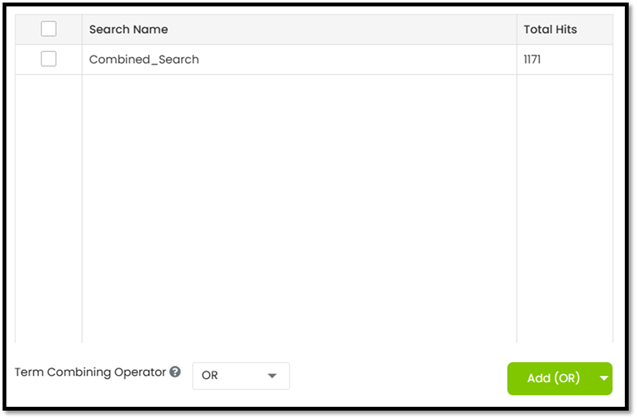
Saved Search allows the user to use
the saved search and combine with other searches to create a new search to find
the documents. On clicking Advanced Search, you can click on the Saved Search
dropdown. This will display all your Saved searches.
Load File Search
You can use a load file to run
searches in Array OnDemand. This is particularly useful if you want to use the
same searches again or across projects, or if you have a lot of search
terms.
Search Term Text
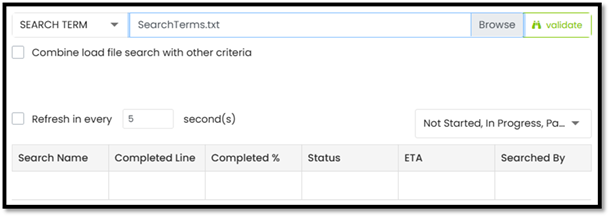
File: This is used to search for specified
terms contained in the load file. Once the search term text file has been
prepared, browse out from the Load File Search Browse button. Click on Validate
to confirm the text file format works with Array OnDemand.
Validation: The green bar will appear once the validation
is complete and successful.
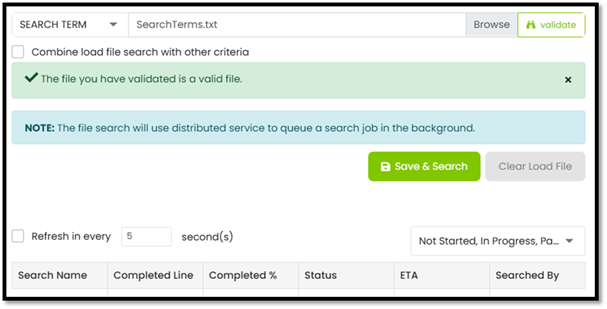
Load File Search
Once the Validation is complete click
on the Save & Search button. You can then provide a name for your
search. We recommend if the terms will be exported that they are saved to a
custom field, as noted below. Once you click on Save, the search will
begin.
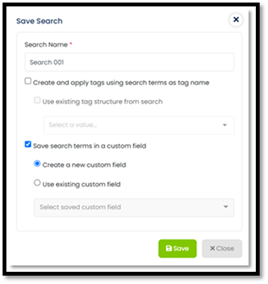
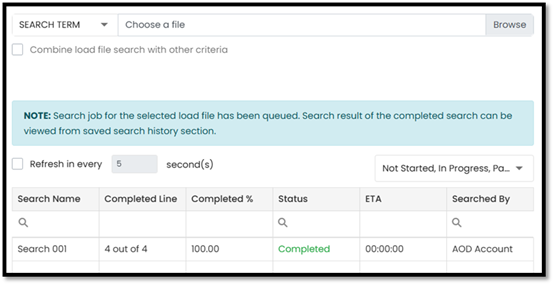
You can go to the search tab and click
on the Saved Search tab to run the search of delete it.

Distributed Job
Search
In Distributed Job Search, the
drop-down menu shows different jobs associated with the project. You also have
the option of selecting the processing machine.
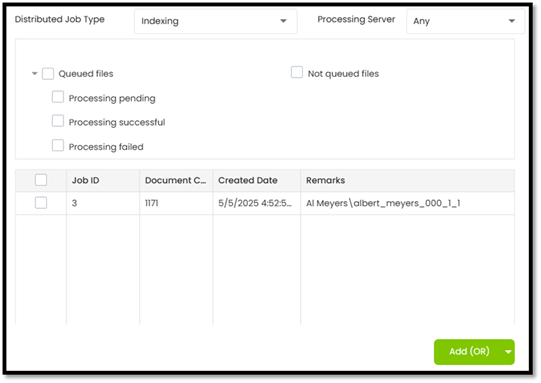
Below are the job
types, which are available from drop down